Why pay your bills online in Sri Lanka? Benefits, safety and what you need first
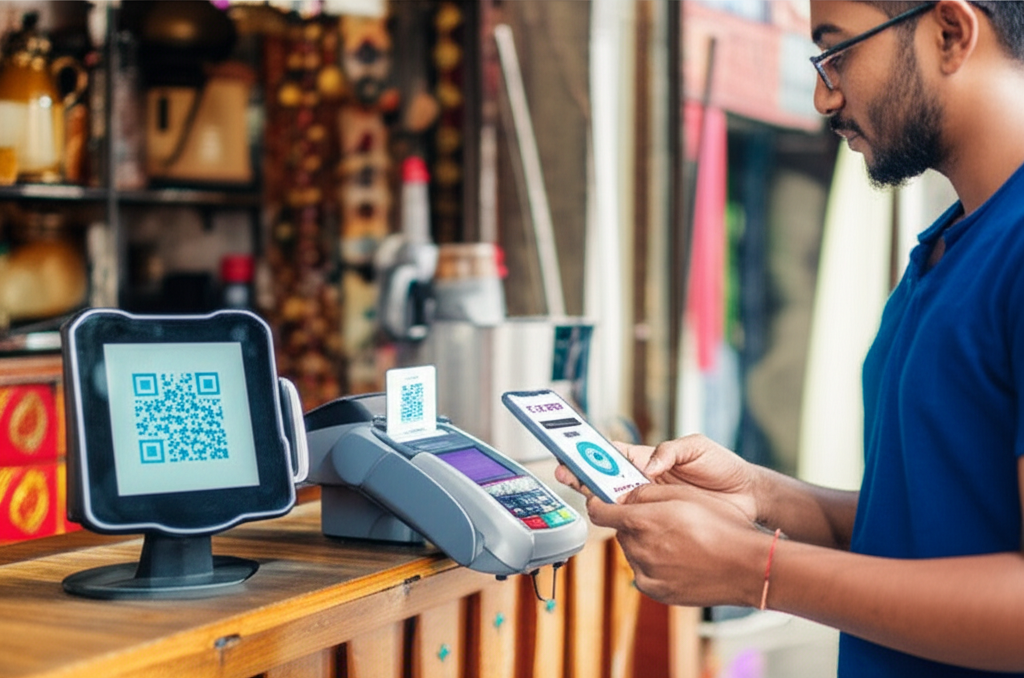
More Sri Lankans now pay everyday bills online, helped by wider internet banking, mobile apps and government platforms such as GovPay operated via LankaPay’s real‑time payment network.[1][2][4][7]
What bills can you pay online?
- Electricity – Ceylon Electricity Board (CEB) bills.
- Water – National Water Supply & Drainage Board.
- Telecom & internet – mobile, fixed‑line and broadband bills from major operators.
- Insurance premiums – many insurers accept card and online bank payments.
- Government fees and services – through platforms like GovPay for nearly 100 public services.[1][2][4][7]
Key benefits of paying bills online
- No queues or travel – pay from home instead of visiting banks or counters; GovPay and bank platforms are designed specifically to remove “long queues” and cash handling.[1][2][4]
- 24/7 access – real‑time payments are available around the clock via CEFTS‑enabled internet and mobile banking.[2]
- Faster processing & reconnection – real‑time crediting means quicker reflection of payments for services and fees.[1][2]
- Better tracking – instant confirmations, email/SMS alerts and downloadable histories make it easier to prove and organise payments.[1][2]
- Lower risk of lost receipts – digital records are stored by banks and platforms instead of paper slips.
Common online payment methods in Sri Lanka
- Bank internet banking and mobile banking apps connected to LankaPay networks.[1][2]
- Debit and credit cards – Visa, Mastercard, American Express and others are widely supported.[5]
- Mobile wallets & fintech apps (e.g. local wallet apps integrated with banks and GovPay).[1][4]
- Government platforms like GovPay for many public‑sector payments.[1][2][4][7]
What you need before you start
- A bank account with internet/mobile banking enabled, or a valid debit/credit card.[5]
- An active mobile number and email for OTPs and payment alerts.
- A stable internet connection on your phone or computer.
- Your bill details: account or customer number, contract/phone number, policy number, billing month and due date (all printed on the bill).
Reading your Sri Lankan bills: key fields
- Account / customer ID – unique number for CEB, water and telecom accounts.
- Billing period / month – the cycle you are paying for.
- Amount due and any arrears.
- Payment deadline and possible late‑fee notes.
Staying safe when paying online
- Use only official websites and apps of banks, utilities, insurers or GovPay.[1][2][4][7]
- Check for HTTPS, correct domain names and genuine logos before entering card or login details.
- Enable two‑factor authentication (2FA) on your bank and wallet apps for extra protection.
- Never share OTPs or passwords with anyone; banks and government platforms will not ask for them over calls or messages.
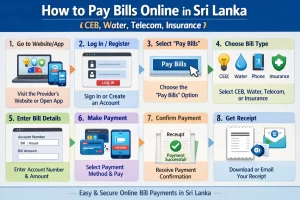
Step‑by‑step: Paying your CEB electricity bill online
You can pay your **CEB bill online** in several ways:
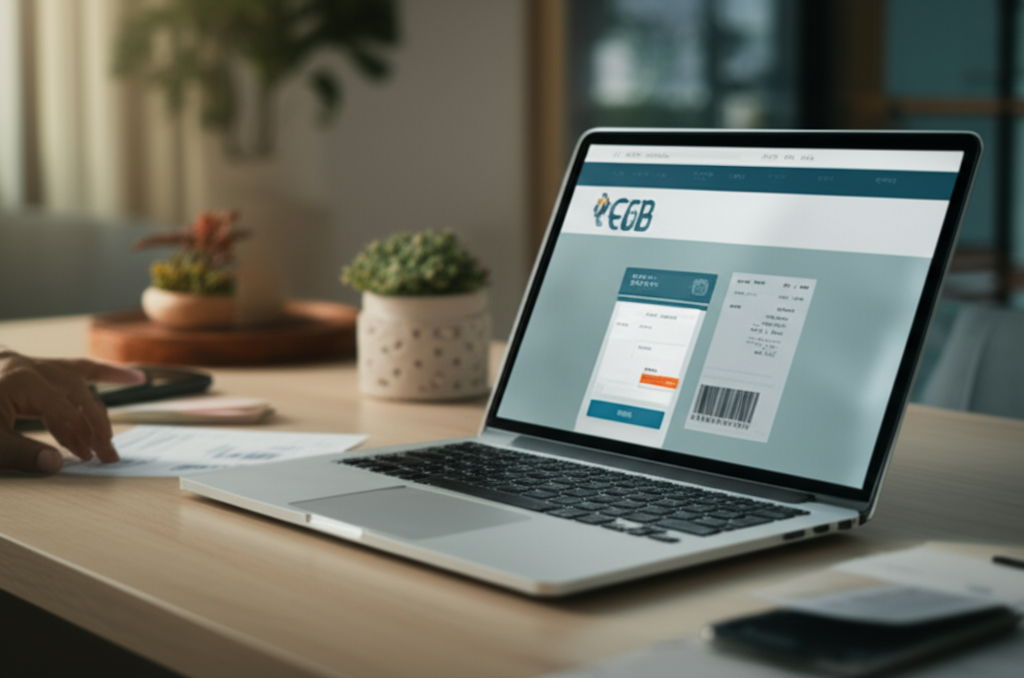
- Official CEB web portal – CEB’s Instant Pay site lets you pay with Visa, Mastercard, or Amex without prior registration.[2][1]
- Bank internet banking & mobile apps – most major Sri Lankan banks list **CEB** under “Bill Payments” (often together with water and telecom).[3]
- Third‑party wallets & apps – apps like People’s Pay and others allow CEB bill payments directly from bank accounts or stored cards.[3]
- CEB Care app – the official mobile app lets you view bill info and make online payments.[6][8]
1. Find your CEB account number before you start
Take your latest **physical or PDF bill** and note:
- Account number (required on the CEB payment portal and banking apps).[1][2]
- Customer name and address (to verify you selected the correct account).
- Due amount and due date to avoid disconnection.
- Any printed **QR code** that some apps can scan for instant data entry.
2. Paying via a typical Sri Lankan internet banking portal
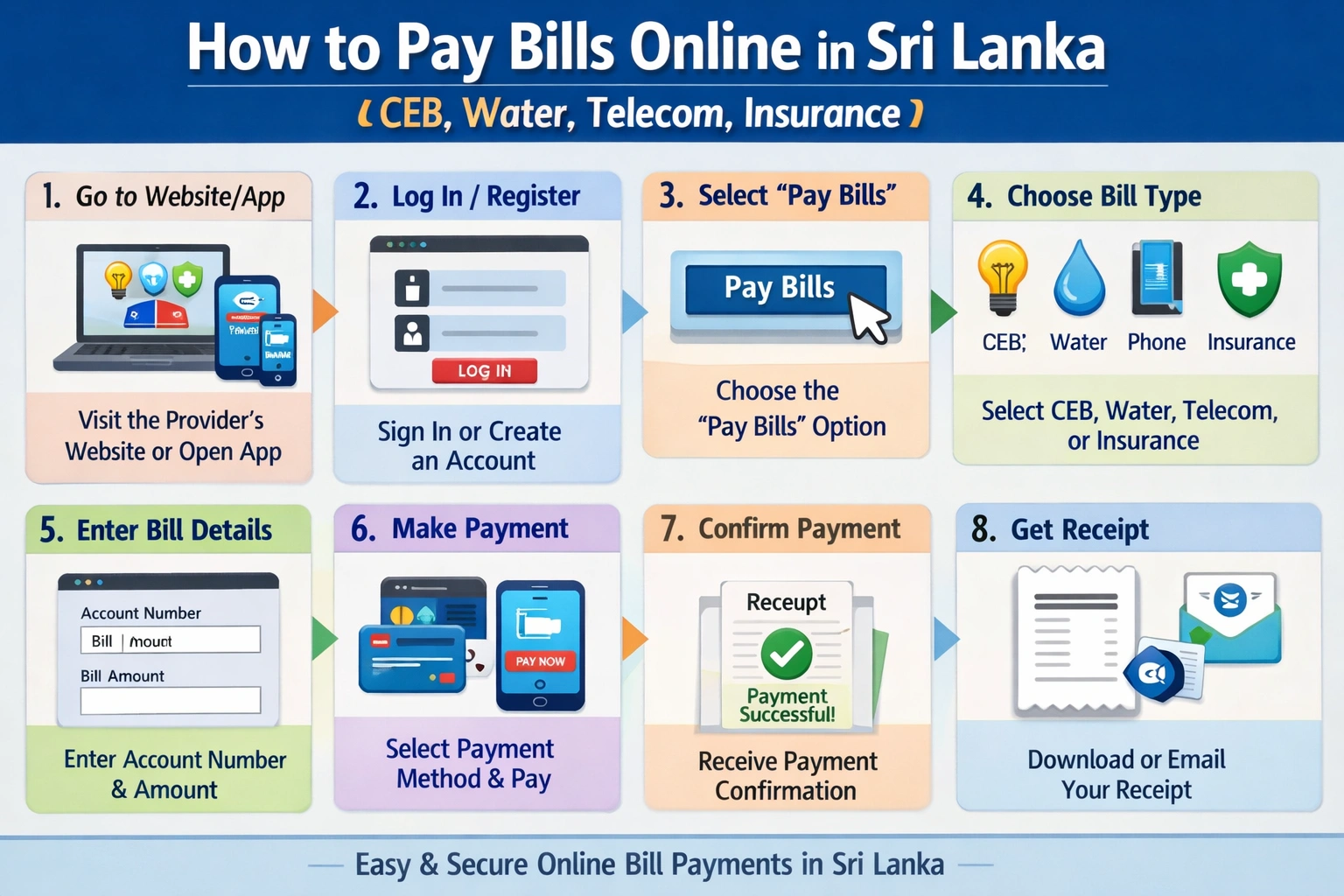
- Log in to your bank’s **internet banking** site with your username and password.
- Go to the “Bill Payments” or “Utility Payments” menu.
- Select **CEB / Electricity** as the biller.
- Enter your **CEB account number** and verify the displayed name/amount (if shown).
- Confirm or type the **amount to pay** (full or partial, depending on bank/CEB rules).[1]
- Choose the account to debit and click **Confirm/Pay**.
- Enter the **OTP (one‑time password)** or PIN sent via SMS/app to authorize the payment.
- Save or download the **receipt/confirmation** page or email as proof.[1]
3. Save CEB as a favourite / registered biller
Most banks and wallets let you save a **“Favourite”** or **“Registered biller”**:
- After a successful payment, click “Save payee” or similar.
- Next month, just select this favourite and pay with one click, without re‑typing the account number.[3]
4. Using mobile banking or wallet apps
On mobile banking or wallet apps (including People’s Pay and CEB Care):[3][6]
- Open the app and tap Bill Payment.
- Select your funding account and choose **CEB** as the biller.[3]
- Scan QR (if the bill has a QR and the app supports it) or enter the account number manually.
- Verify the customer name and amount, then confirm payment.
- Download or share the **e‑receipt** from the app.[3]
5. Common issues and quick fixes
- Payment not reflecting immediately – CEB notes that transactions are subject to reconciliation until they receive confirmation from the bank; allow some time.[1]
- Wrong account number entered – if the payment went to the wrong account, contact your bank and the CEB call centre (1987) as soon as possible with the receipt.[1]
- Duplicate payments – keep all confirmations; your bank or CEB can trace and adjust during reconciliation.[1]
- Need a receipt – use confirmation email/SMS, PDF receipt, or in‑app receipt as official proof of online payment.[1][3]
6. Tips to avoid disconnection
- Set **calendar reminders** a week before the bill due date.
- Use **scheduled payments** or standing instructions if your bank supports them, so CEB, water, telecom, and insurance bills are paid automatically.
- Pay before typical **peak cutoff days** (often just before the due date) to allow for bank‑to‑CEB reconciliation.[1]
- Keep at least one **backup method** (another bank app or the CEB portal) in case one system is down.[2][6]
Step‑by‑step: Paying water and telecom bills online
Sri Lanka’s real‑time payment rails (like CEFTS, JustPay and LankaQR) let banks and apps connect directly to government bodies and service providers, enabling fast online payments for water, telecom, insurance and more.[2] Many utilities are also available through centralized government payment platforms such as GovPay and the LankaPay Government Payment Platform.[1][4][7]
1. Major water & telecom providers and online options
For **water**, you will usually pay the **National Water Supply & Drainage Board (NWSDB)** or a local municipal water board. These are commonly available through bank internet/mobile banking, bill‑pay apps that use CEFTS/JustPay, and government payment portals that connect via LankaPay.[1][2]
For **telecom and internet**, key providers include **Dialog, SLT‑Mobitel, Hutch and Airtel**, which typically support payments via official mobile apps and websites, USSD menus, LankaQR/JustPay‑enabled apps, and direct integrations in bank bill‑pay menus.[2][5]
2. Paying NWSDB or local water bills online
- Log in to your bank’s internet banking or mobile app and open the “Bill Payments” or “Utilities” section (many banks route these payments over CEFTS or LPOPP to government agencies).[1][2]
- Select **Water / NWSDB** or your **local water board** from the list of billers.
- Enter your **water account number** and bill/usage period (see next step), then the amount due.
- Confirm details and authorise payment using your bank’s usual authentication (PIN, OTP, or biometrics).
- Save or screenshot the confirmation reference; many platforms provide instant confirmation because payments are processed in real time.[1][2]
3. Finding your water account number and usage period
On a typical NWSDB or local water bill, look for:
- Account / Consumer No. – usually near the top, next to your name and address.
- Billing period / Usage period – often shown as “From – To” dates or as a specific month.
- Bill number – sometimes required for portals that match payments automatically.
Enter the account number exactly as printed (including any leading zeros or dashes) to avoid rejection or mis‑posting. If your bank validates details via connected platforms (such as LPOPP or GovPay), the customer name and bill amount will appear for you to confirm.[1][4][7]
4. Paying telecom & internet bills (Dialog, SLT‑Mobitel, Hutch, Airtel)
Most telecoms support multiple digital options enabled by Sri Lanka’s payment infrastructure:[2][5]
- Official apps & websites – Log in, select “Pay Bill,” choose card, bank account, or JustPay/LANKAQR and complete payment.
- USSD – Dial the operator’s short code, choose “Bill payment” and follow on‑screen prompts, then confirm with your mobile wallet/bank link where available.
- Bank integrations – In your bank’s app/portal, go to “Mobile / Telephone / Internet” billers, select the operator, enter mobile or account number and pay via CEFTS/JustPay.[2]
5. Using auto‑debit & standing instructions
To avoid disconnection on **postpaid mobile, fixed‑line, and broadband**:
- In your telecom app or portal, enable **auto‑debit** from a saved card or linked bank account (many use JustPay pull transactions for this).[2]
- Alternatively, set a **standing instruction** or scheduled payment from your bank to the operator or NWSDB on a chosen date each month.
6. Checking payment history & downloading receipts
Telecom self‑care portals and apps usually provide a **“Bills & Payments”** or **“History”** section where you can see past payments and download PDF receipts. Water portals or government payment gateways (like GovPay or LPOPP‑connected sites) also maintain a transaction log and let you view or print acknowledgements with official reference numbers.[1][4][7]
7. Troubleshooting common issues
- Payment made but service still barred – Allow some time for automatic reconnection. If CEFTS/JustPay shows success but the line is not restored, contact the **service provider** with your payment reference.[2]
- Over‑payments or paid wrong account – First contact the **water board or telecom** with the receipt; if they cannot trace it, escalate to your **bank** with the transaction ID and time stamp.[1][2]
- Card or account debited, but no bill update – Check the payment history in your bank and the utility/telecom portal. If the payment appears only in the bank, open a dispute with the bank; if it appears in both but the service remains barred, contact the **utility’s customer care**.[1][2][4]
Best practices, GovPay and staying organized with your online bills
Sri Lanka’s maturing digital payment ecosystem makes paying recurring bills like CEB, water, telecom and insurance far easier than lining up at counters. The country’s real-time payment rail CEFTS, operated by LankaPay, connects banks, mobile apps and online portals so you can send funds 24/7 from almost any bank app to most billers in seconds.[2] Government-related payments are increasingly routed through specialized platforms such as the LankaPay Government Payment Platform (LPOPP), which plugs government agencies directly into online banking for instant reconciliation.[1][2] On top of that, the growing GovPay platform already lets citizens settle traffic fines and nearly 100 other public services digitally, with usage expanding across provinces.[4]
To stay on top of CEB, water, telecom and insurance, create a simple monthly bill calendar. Note each biller, typical amount, due date and payment channel (bank app, GovPay, QR, card). Check whether your bank or service provider allows you to set standing orders or scheduled payments over CEFTS so priority bills are paid automatically.[2] Combine this with email alerts, SMS reminders and app notifications from banks, utilities and insurers so you get a nudge a few days before and on the due date.
Keep a clean digital record system each time you pay: download PDFs from portals, save screenshots of confirmations, or archive email receipts into dated folders on your computer or cloud storage. Use clear folder names like “CEB 2026” or “Insurance – Motor” so you can quickly prove payment if there’s ever a dispute.
Every online payment should follow basic security and privacy habits. Pay only over private, password‑protected Wi‑Fi; avoid cybercafés and public hotspots for banking. Log out of bank and GovPay portals when finished, keep your banking and payment apps updated, and review your bank statements regularly to spot unfamiliar transactions early.[2][4] Enable two‑factor authentication wherever possible.
If something goes wrong—such as a failed transaction or double charge—first check whether the payment is pending or reversed in your bank app. Take screenshots, keep reference numbers, and contact your bank’s hotline with the exact date, time, amount and biller. For government or utility payments (including those via GovPay or LPOPP-linked services), also contact the service provider’s call centre with your receipt or reference ID so they can trace the payment through the national rails.[1][2][4]
As Sri Lanka moves further into e‑billing, e‑invoicing and digital tax systems, households will see fewer paper statements and more real‑time digital records, helping with budgeting, cash‑flow planning and reducing clutter.[3][6] Used well, these tools turn bill payment from a stressful monthly chore into a predictable, trackable routine.